
Applies to: SureCartHub mobile app
Run more than one SureCart account from a single device. Save each store with its own secret API token, switch between them in one tap, and keep tokens encrypted on this phone or tablet. No SureCartHub license is required to add, switch or remove saved stores.
Open your stores
- Tap More in the bottom tab bar.
- Tap the store card at the top of the screen (shows your active store name and how many stores are saved).
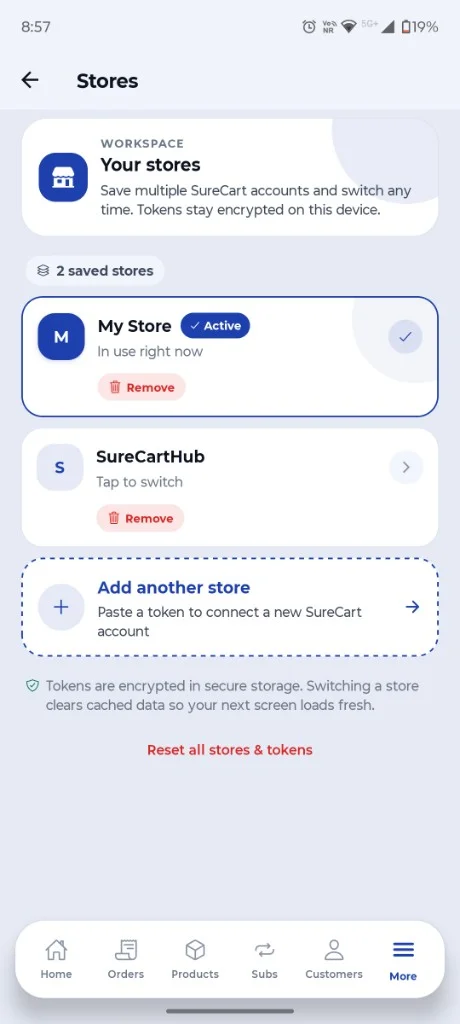
- The Stores screen lists every account connected on this device.
Switch stores
The active store shows an Active badge and In use right now. Tap any other saved store to switch – the app clears cached data and reloads orders, products and dashboard stats for the account you pick.
Add another store
Tap Add another store, paste a secret API token from a different SureCart account, then tap Verify & add. The app checks the token before saving. If that store is already connected, SureCartHub switches to it instead of creating a duplicate.
Need help finding a token? See Connecting your store or How to get your secret token.
Remove or reset
- Remove – deletes one saved store from this device. You can re-add it later with its token. Removing the active store signs you out and clears cached data.
- Reset all stores & tokens – wipes every saved account from this device. Use this if you want a clean start; you will need to add each store again.
Security
Tokens are encrypted in secure storage on native devices. Switching stores clears cached data so the next screen always loads fresh account data.

