
Applies to: SureCartHub mobile app
Push notifications are the most requested SureCartHub feature – get alerted on your phone the moment something happens in your store. New orders, failed payments, refunds, subscriptions and more arrive as native push alerts so you can respond without checking the app all day.
Push requires an activated SureCartHub license for the store you want alerts from, and the app installed on your phone. Browsing your store, dashboard stats and lists stay free with just a store token.
Turn on notifications
- Connect your store – see Connecting your store.
- Go to More → SureCartHub license and activate your key for this store.
- Tap More → Notifications, then tap Enable notifications and allow the system prompt.
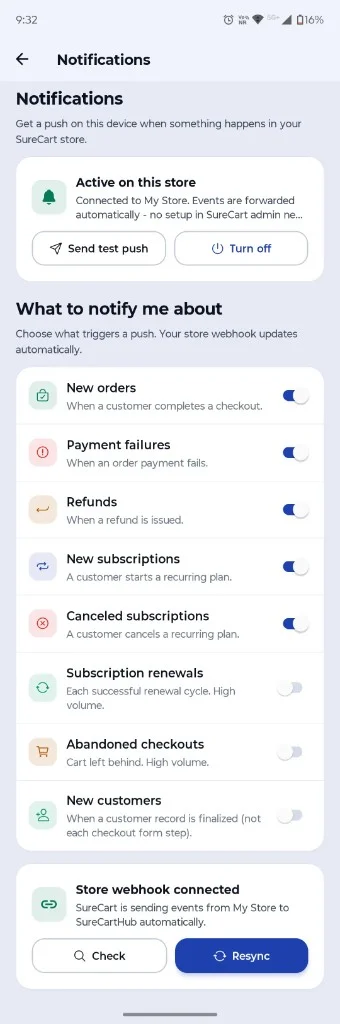
SureCartHub connects a webhook on your store automatically – no manual URL setup in the SureCart admin. When the status card shows Active on this store, events from that account forward to your device.
Choose what to notify you about
Under What to notify me about, toggle each event type. Your store webhook updates automatically when you change a switch. Defaults favor high-signal alerts:
- New orders – customer completes checkout (on by default)
- Payment failures – order payment fails (on by default)
- Refunds – refund issued (on by default)
- New subscriptions – customer starts a plan (on by default)
- Canceled subscriptions – customer cancels (on by default)
- Subscription renewals – each successful cycle; high volume (off by default)
- Abandoned checkouts – cart left behind; high volume (off by default)
- New customers – customer record finalized (off by default)
Test, troubleshoot and turn off
- Send test push – confirms delivery to this device
- Turn off – stops push for the active store on this device
- Store webhook connected – green when SureCart is forwarding events; use Check or Resync if alerts stop arriving
Tap a push alert to jump straight to the related order or record. You can also browse recent events from the bell icon on the Dashboard.
Multiple stores
Notification settings are per store. Switch accounts under Managing multiple stores, then open Notifications again to enable or adjust alerts for that account.

