


When working with SureCart in WordPress, product data is stored as a custom post type called sc_product.
Most WordPress queries return a WP_Post object, but to access SureCart-specific data (price, stock, availability, etc.), you need the SureCart Product object.
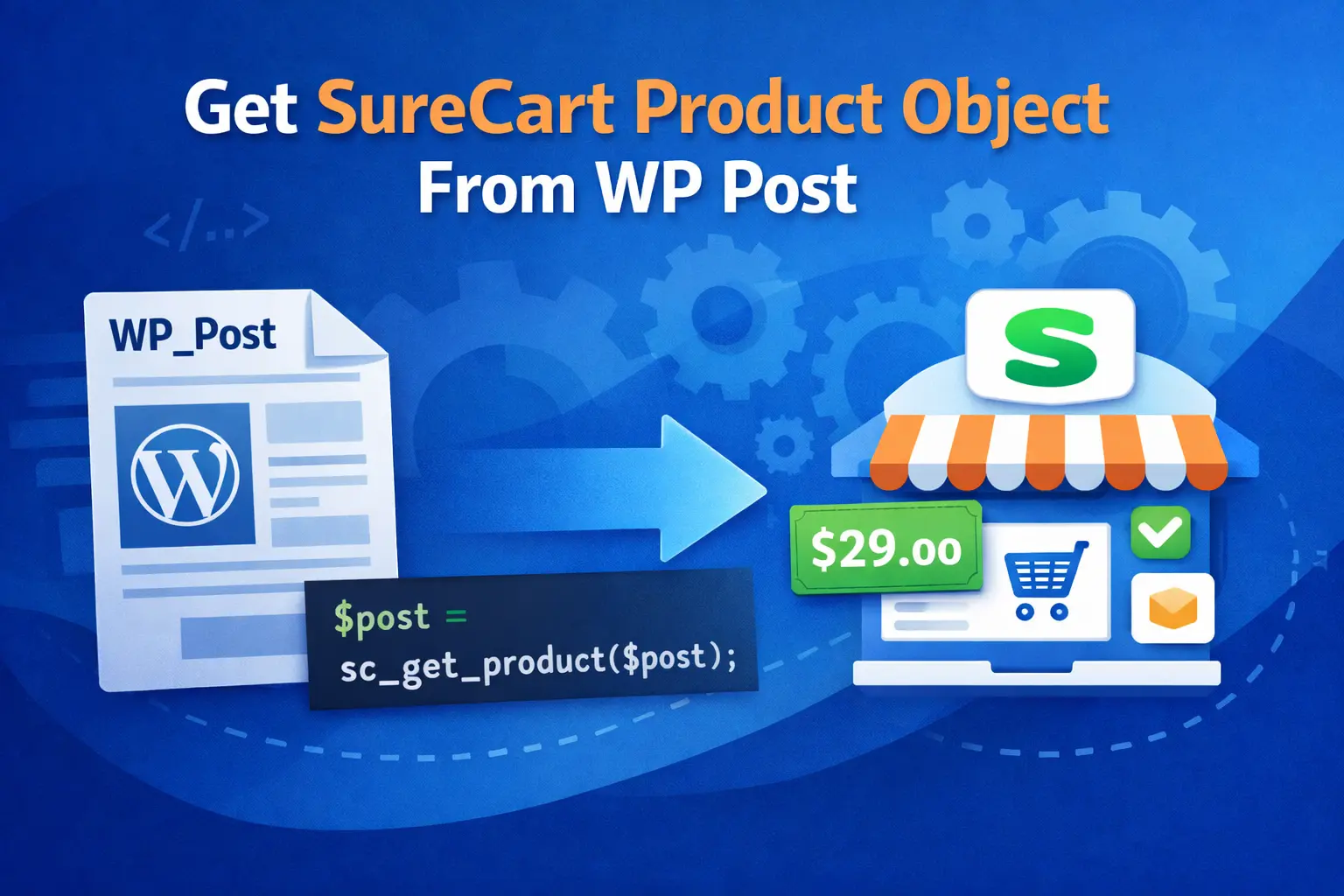
In this guide, you’ll learn how to get a SureCart product object from a product post object using the recommended SureCart functions.
When Do You Need the SureCart Product Object?
A WP_Post only contains WordPress data like:
- Post title
- Post ID
- Post content
- Post status
But SureCart features like:
- Price
- Stock status
- Purchase limits
- Variants
- Billing intervals
are available only on the SureCart Product object.
Method 1: Get the SureCart Product Object Inside the Loop
If you are inside a WordPress loop and calling the_post(), SureCart automatically sets the product context.
You can directly use:
$sc_product = sc_get_product();
Example
$args = [
    'post_type'      => 'sc_product',
    'posts_per_page' => 5,
];

$query = new WP_Query( $args );

if ( $query->have_posts() ) {
    while ( $query->have_posts() ) {
        $query->the_post();

        $sc_product = sc_get_product();

        echo '<h3>' . esc_html( get_the_title() ) . '</h3>';
        echo '<p>Price: ' . esc_html( $sc_product->display_amount ) . '</p>';
    }

    wp_reset_postdata();
}
This works because the_post() sets the global product context for SureCart.
Method 2: Get the SureCart Product Object From a WP_Post (Outside the Loop)
If you already have a WP_Post object or a post ID, you can pass it directly to sc_get_product().
Using a Post ID
$post_id   = 123;
$post      = get_post( $post_id );
$sc_product = sc_get_product( $post );
Using a WP_Post Object
$posts = get_posts([
    'post_type'      => 'sc_product',
    'posts_per_page' => 5,
]);

foreach ( $posts as $post ) {
    $sc_product = sc_get_product( $post );

    echo '<h3>' . esc_html( get_the_title( $post ) ) . '</h3>';
    echo '<p>Price: ' . esc_html( $sc_product->display_amount ) . '</p>';
}
This is the recommended approach when working outside the main WordPress loop.
Recommended Helper Function (Best Practice)
If you’re building a plugin or theme, it’s best to use a helper function to keep your code clean and safe.
/**
 * Get SureCart product object from a product post.
 *
 * @param int|WP_Post $post Product post ID or WP_Post object.
 * @return object|null SureCart product object or null on failure.
 */
function get_surecart_product_from_post( $post ) {

    if ( empty( $post ) ) {
        return null;
    }

    $post = is_numeric( $post ) ? get_post( (int) $post ) : $post;

    if ( ! ( $post instanceof WP_Post ) || 'sc_product' !== $post->post_type ) {
        return null;
    }

    return sc_get_product( $post );
}
Usage Example
$product = get_surecart_product_from_post( 123 );

if ( $product ) {
    echo 'Price: ' . esc_html( $product->display_amount );
}
Bonus: Get a SureCart Product Object Using the Product ID (UUID)
If you already have the SureCart Product ID (UUID), you can retrieve the product directly using the SureCart model.
use SureCart\Models\Product;

$product = Product::find( 'YOUR-PRODUCT-UUID-HERE' );
This is useful when working with SureCart API responses or stored product IDs.
Common Mistakes to Avoid
❌ Trying to access price from WP_Post
✅ Always use the SureCart Product object
❌ Calling sc_get_product() without the_post() inside a loop
✅ Call the_post() first or pass the post manually
❌ Assuming all posts are SureCart products
✅ Always check post_type === sc_product
Summary
- Inside the loop → use
sc_get_product() - Outside the loop → use
sc_get_product( $post ) - Reusable code → create a helper function
- Have a product UUID → use
Product::find()
This approach ensures clean, performant, and future-proof SureCart integrations in WordPress.


Leave a Reply